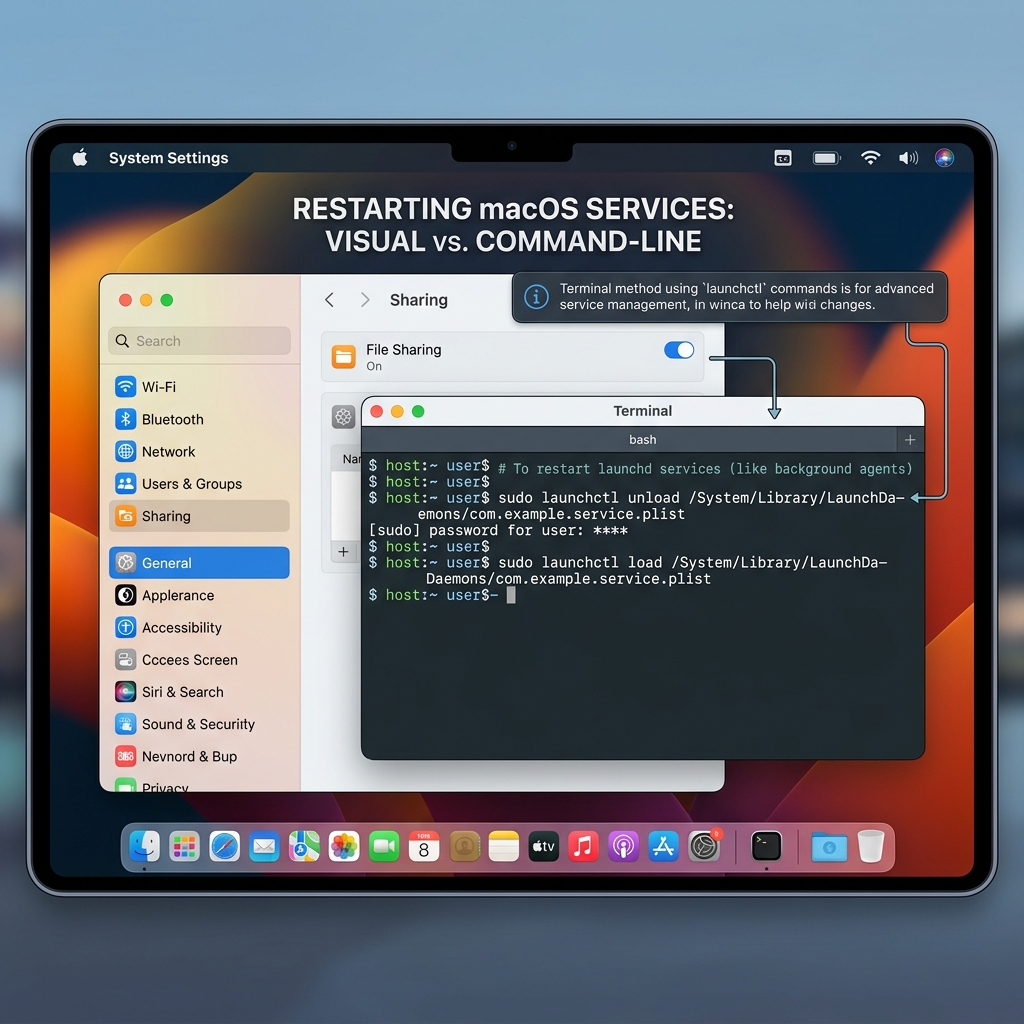
Struggling with a misbehaving service on your Mac? This post explains two easy ways to restart services on macOS: using System Preferences for a simple GUI approach and Terminal commands for more control over system-level services. Follow step-by-step instructions to stop and start services, whether you’re a casual user or a developer. Learn how to manage user-level services quickly or gain fine control via Terminal commands like `launchctl`. Whether you prefer a no-fuss graphical method or the power of command line, this guide helps you troubleshoot and get your Mac services running smoothly again.
Whether you're a seasoned developer or a casual Mac user, knowing how to restart a service on macOS can save you a lot of time and frustration. In this post, we'll cover two simple methods to get the job done.
Method 1: Using System Preferences
The easiest way to restart a service is through the System Preferences UI:
- Open System Preferences.
- Navigate to Users & Groups > Login Items.
- Select the service you want to restart and click the minus (-) button.
- Restart your Mac, then re-add the service from the same menu.
This method is best for user-level services and doesn't require any technical knowledge.
Method 2: Using the Terminal
For more control, especially with system-level services, the Terminal is your best friend:
- Open Terminal (found in Applications > Utilities).
- Run the following commands:
   sudo launchctl stop <service_name>
   sudo launchctl start <service_name>
Replace <service_name> with the actual service identifier
(e.g., com.apple.apsd).
- Enter your password when prompted.
Pro Tip: To list all running services, use: sudo launchctl list
Which Method Should You Use?
- Use System Preferences for a quick, no-fuss approach.
- Use Terminal when dealing with system-level services or when you need more precise control.
Conclusion
Restarting a service on macOS is straightforward once you know where to look. As a rule of thumb, always try the GUI approach first, and fall back to the Terminal when needed. Happy troubleshooting!



Comments (0)
No comments yet. Be the first to comment!